SAP .xml reports won't open in Excel
Set Excel as the Default App for .XML Files
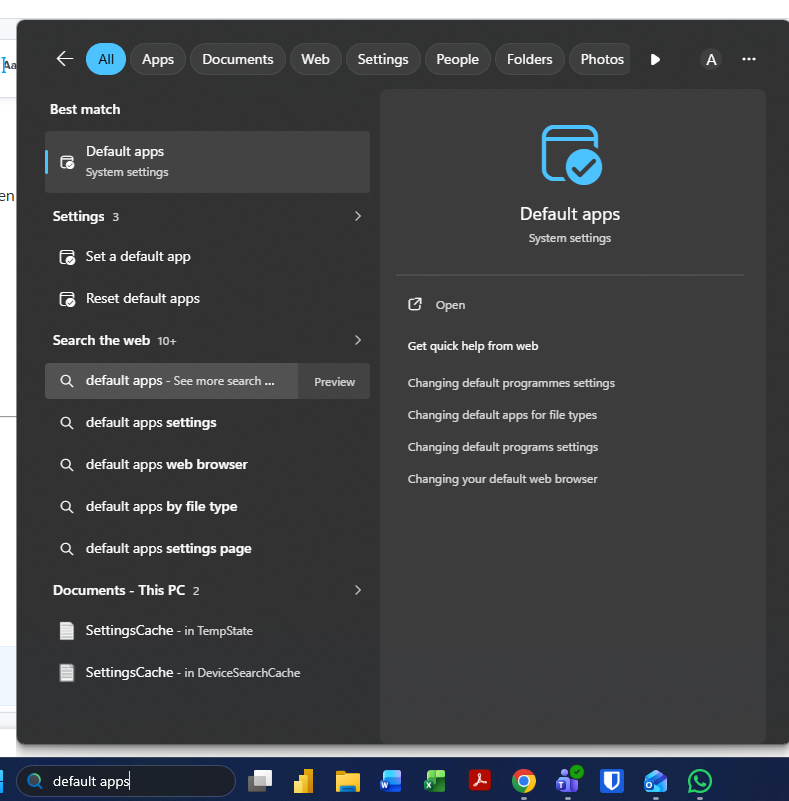
Open Default Apps settings
-
On your PC, click the Windows search bar and type “Default apps”, then open it.
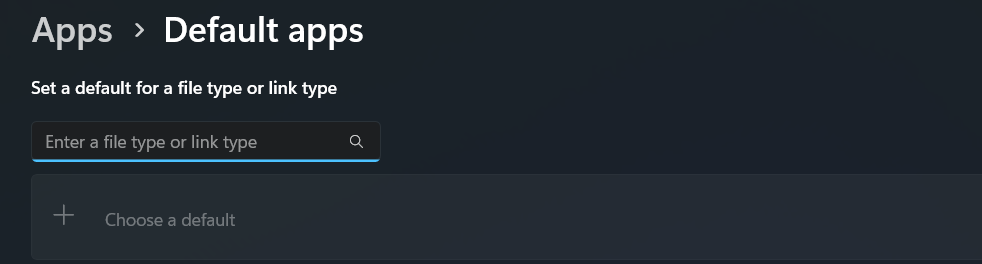
Go to file type settings
-
Find and click “Choose defaults by file type.”
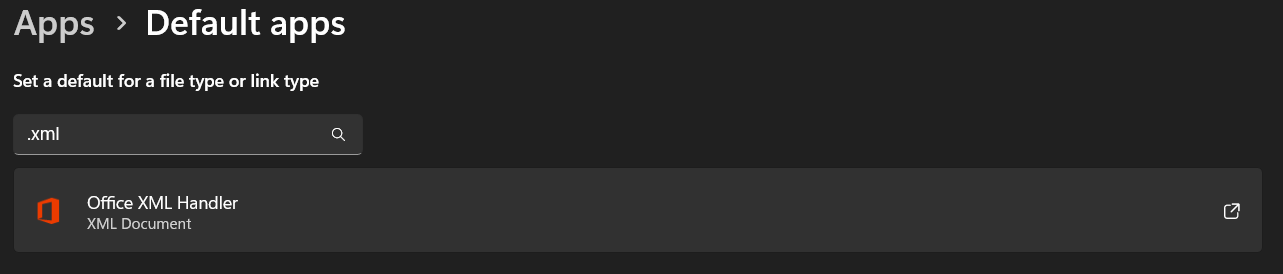
Find XML files
-
Scroll or search for
.xml in the list.
-
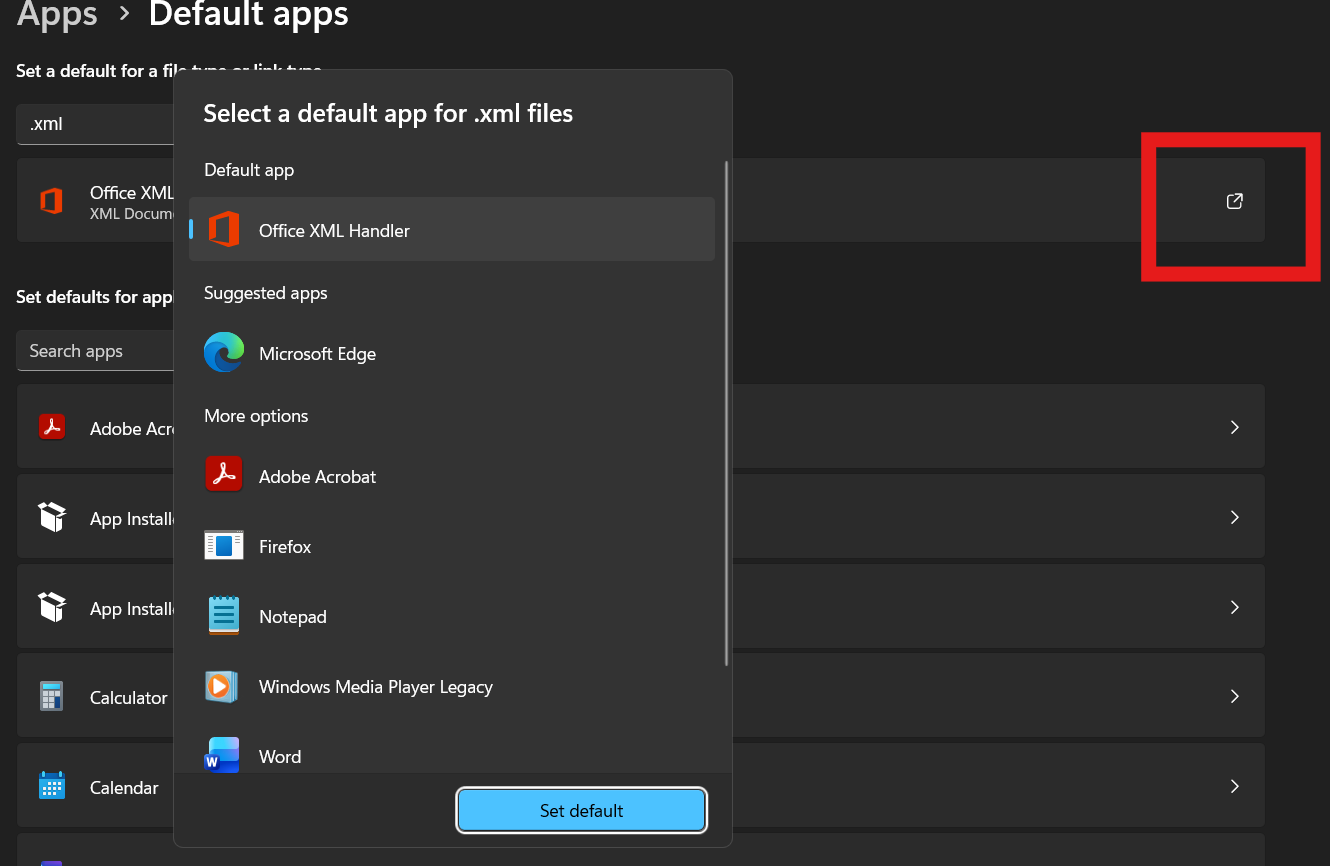
Select Excel
-
Click the current default app next to
.xml.
-
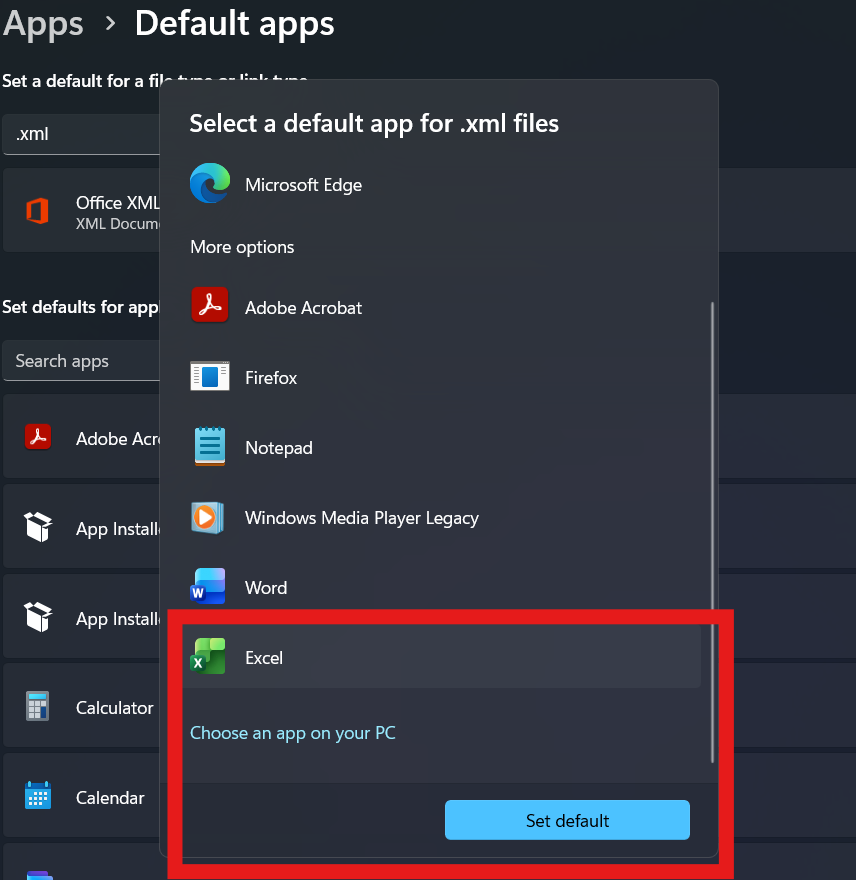
Choose Excel from the list.
If Excel doesn’t appear in the list:
-
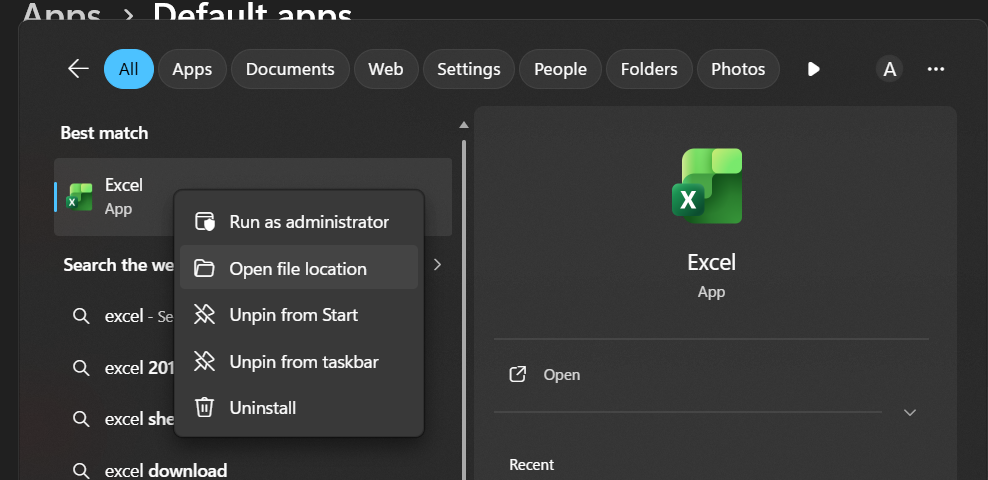
Search for Excel in the Windows search bar.
-
Right-click it and select “Open file location.”
-
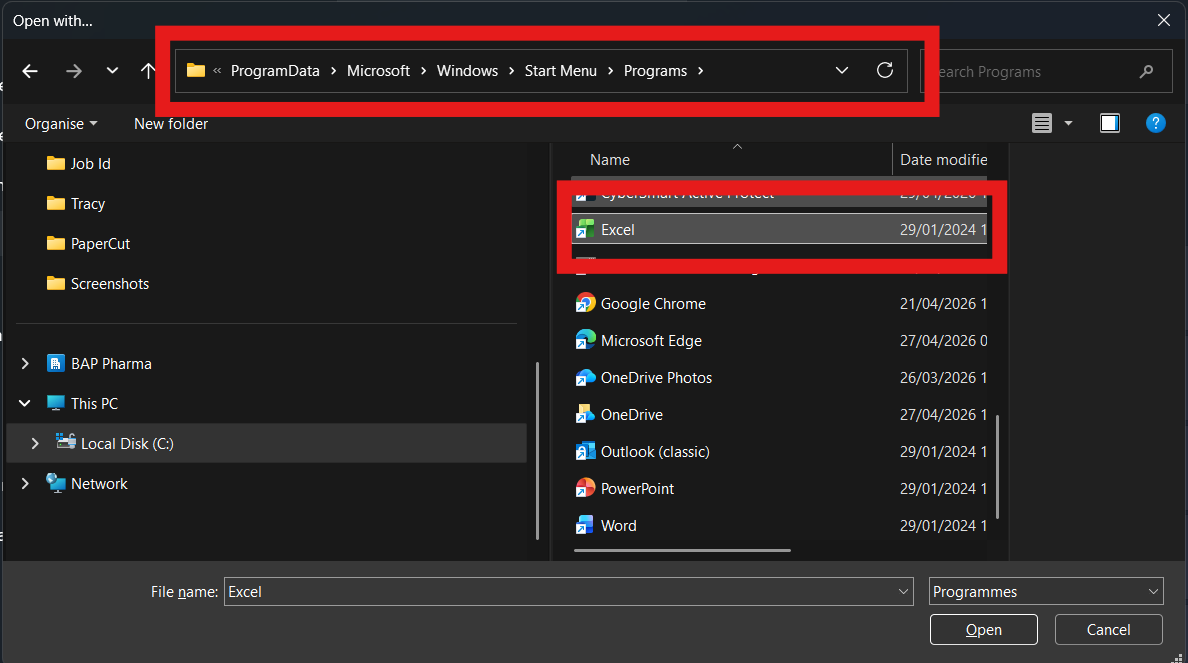
In the folder that opens, copy the file path.

-
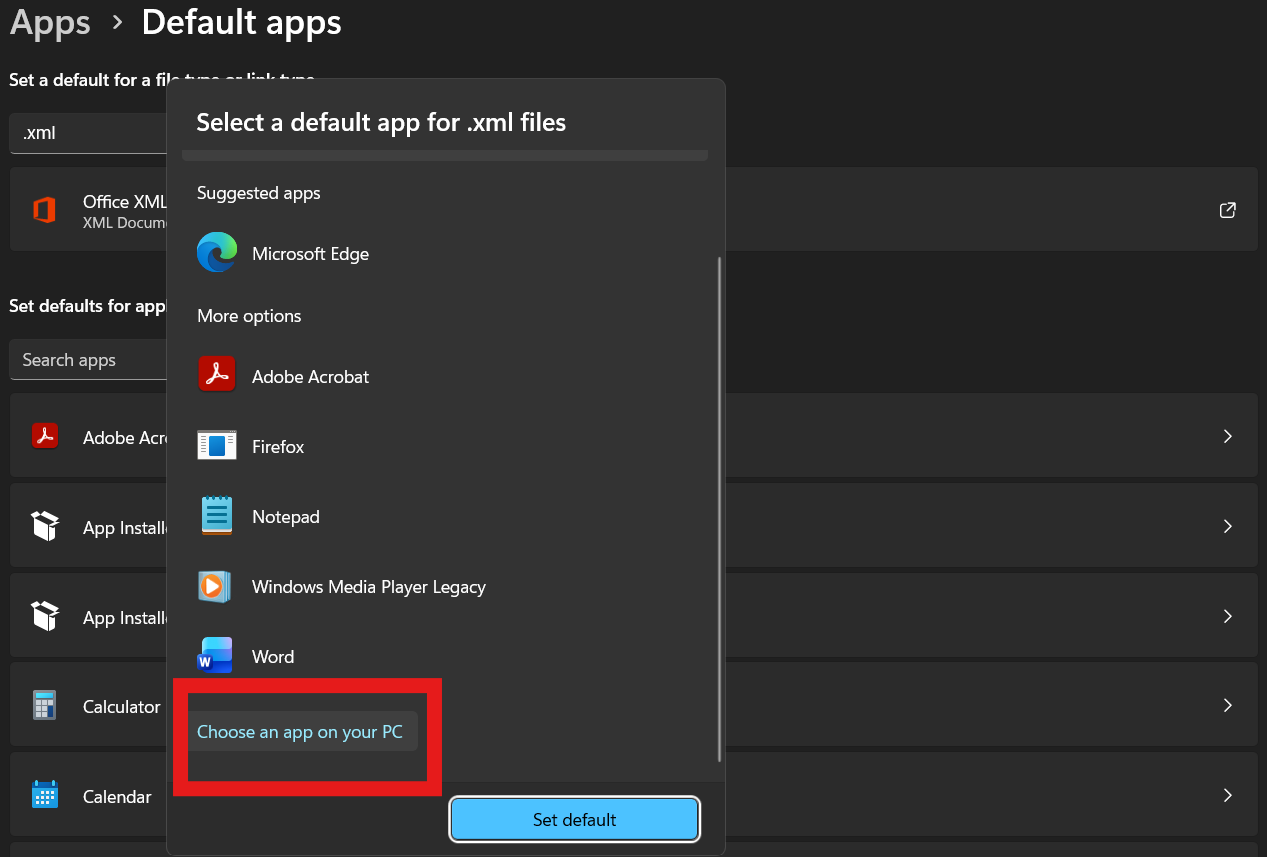
Go back to the
.xml settings and click “Choose an app on your PC.”
-
Paste the copied path and select Excel.
-
Confirm to set it as the default.
Related Articles
Sharing Files and Folders in SharePoint
This guide explains how to securely share files and folders in Microsoft SharePoint and what level of access users receive when content is shared. Before You Share When you share a file or folder, you are granting permissions to other users. The type ...
Windows Autopilot & Application Deployment Guide
Overview BAP Pharma uses Windows Autopilot together with Microsoft Intune to automatically configure, secure, and prepare corporate devices for use. When a new company laptop is switched on for the first time: The device automatically joins the ...
Simple Guide: Share a Folder in OneDrive
Simple Guide: Share a Folder in OneDrive Step 1: Open OneDrive 1. Go to https://bappharma-my.sharepoint.com/ 2. Click Sign in and Enter your email and password (if you must) Step 2: Create a Folder 1. Click Create or Upload 2. Click Folder 3. Type a ...