Windows Autopilot & Application Deployment Guide
Overview
BAP Pharma uses Windows Autopilot together with Microsoft Intune to automatically configure, secure, and prepare corporate devices for use.
When a new company laptop is switched on for the first time:
- The device automatically joins the corporate environment
- Security and compliance settings are applied
- Core business applications are installed automatically
- Additional applications become available through Company Portal
This process ensures devices are:
- Secure
- Standardised
- Ready for work quickly
- Fully manageable by IT
What to Expect During Device Setup
Initial Setup (ESP Phase)
During the first login, users will see:
Device setup / Account setup
This stage is known as the:
Enrolment Status Page (ESP)
During this phase:
- Security tools are installed
- Device management policies are applied
- Compliance settings are configured
- Core support services are enabled
Please do not:
- Shut down the laptop
- Disconnect from the internet
- Force restart the device
Typical setup time:
10–20 minutes
depending on internet speed and device performance.
Applications Installed Automatically During Setup
The following applications install automatically during the provisioning process:
| Application | Purpose |
|---|---|
| Arctic Wolf | Security monitoring and threat protection |
| Acronis Cyber Protect | Endpoint protection, backup, and cyber resilience |
| Company Portal | Access to corporate applications and self-service software |
| SharePoint Online shortcut | Quick access to company SharePoint resources |
| Sysmon | Advanced security event monitoring |
| Windows Autopatch | Automated Windows and Microsoft update management |
| Zoho Assist | Remote IT support and troubleshooting |
These applications are required for:
- Security
- Compliance
- Device management
- Remote support
- Monitoring
- Endpoint resilience and recovery
Applications Installed Automatically After Login
Once the device has completed enrolment and the user reaches the desktop, additional applications may begin installing automatically in the background.
These applications do not block the initial setup process.
| Application | Purpose |
|---|---|
| Microsoft 365 | Outlook, Word, Excel, Teams, and PowerPoint |
| Lansweeper | IT inventory and device management |
| PaperCut Hive Print Client | Secure corporate printing services |
| PaperCut Hive Edge Node (UK devices only) | Print infrastructure services |
Important
Applications installed post-login may continue downloading and configuring for some time after the desktop appears.
Applications Available Through Company Portal
Some applications are optional and can be installed manually by users through Company Portal.
To install optional applications:
- Open Company Portal
- Select Apps
- Choose the required application
- Click Install
Optional applications currently include:
| Application | Notes |
|---|---|
| Adobe Creative Cloud | Available for users who require Adobe tools - Acrobat etc. |
| Google Chrome | Optional alternative web browser |
Printing Services
Printing services are deployed automatically for supported users and locations.
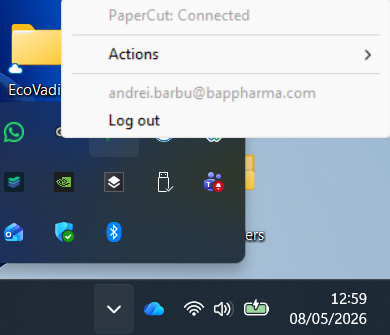
UK Devices
Users in UK will automatically receive:
- PaperCut Hive Print Client
- PaperCut Hive Edge Node services where required
If printing is unavailable after setup:
- Restart the device
- Wait 15–30 minutes for policy synchronisation
- Contact IT Support if the issue continues
Company Portal
Company Portal is the primary application management tool for corporate devices.
Users can use Company Portal to:
- Install approved applications
- View available business software
- Check installation status
- Sync company policies
- Review device compliance information
Troubleshooting & Support
If Setup Appears Stuck
Please:
- Ensure the device remains connected to the internet
- Keep the device powered on
- Wait at least 30 minutes before reporting an issue
If Applications Are Missing
Open:
Company Portal → Settings → Sync
Then wait several minutes for applications and policies to refresh.
If Issues Continue
Contact the IT Service Desk and provide:
- Device name
- Error message (if shown)
- Screenshot/photo if possible
Frequently Asked Questions
Can I use the device while apps are installing?
Yes. Most business applications install automatically in the background after login.
Why are some apps not installed automatically?
Some applications are optional or licensed only for specific users, departments, or locations.
Why does setup time vary?
Provisioning time can vary depending on:
- Internet speed
- Device performance
- Application download size
- Microsoft cloud service availability
Why is Company Portal important?
Company Portal allows users to:
- Install optional software
- Access approved business applications
- Sync device policies
- Troubleshoot application deployment issues
Security & Compliance
All corporate devices are automatically configured with:
- Security monitoring
- Endpoint protection
- Compliance policies
- Automated patch management
- Remote support tooling
These controls help protect:
- Company data
- User accounts
- Corporate systems
- Endpoint devices

Related Articles
Simple Guide: Share a Folder in OneDrive
Simple Guide: Share a Folder in OneDrive Step 1: Open OneDrive 1. Go to https://bappharma-my.sharepoint.com/ 2. Click Sign in and Enter your email and password (if you must) Step 2: Create a Folder 1. Click Create or Upload 2. Click Folder 3. Type a ...SAP .xml reports won't open in Excel
Set Excel as the Default App for .XML Files Open Default Apps settings On your PC, click the Windows search bar and type “Default apps”, then open it. Go to file type settings Find and click “Choose defaults by file type.” Find XML files Scroll or ...Sharing Files and Folders in SharePoint
This guide explains how to securely share files and folders in Microsoft SharePoint and what level of access users receive when content is shared. Before You Share When you share a file or folder, you are granting permissions to other users. The type ...Using the PaperCut Printers (Finance Side and Main Office)
Table of Contents Introduction Logging in to PaperCut Hive Releasing your print jobs Scanning to your email Copying documents Need help? 1. Introduction This guide explains how to use the multifunction printers located on the Finance Side and Main ...